


This guide shows how to find a suitable role and apply in a few minutes, without creating an account. The screenshots come from the real site with synthetic training data (such as "Lina (Training)"). They contain no real applicant data.
You will need: a valid email address, a mobile number, and a CV in PDF format no larger than 10 MB.
1. Find a role
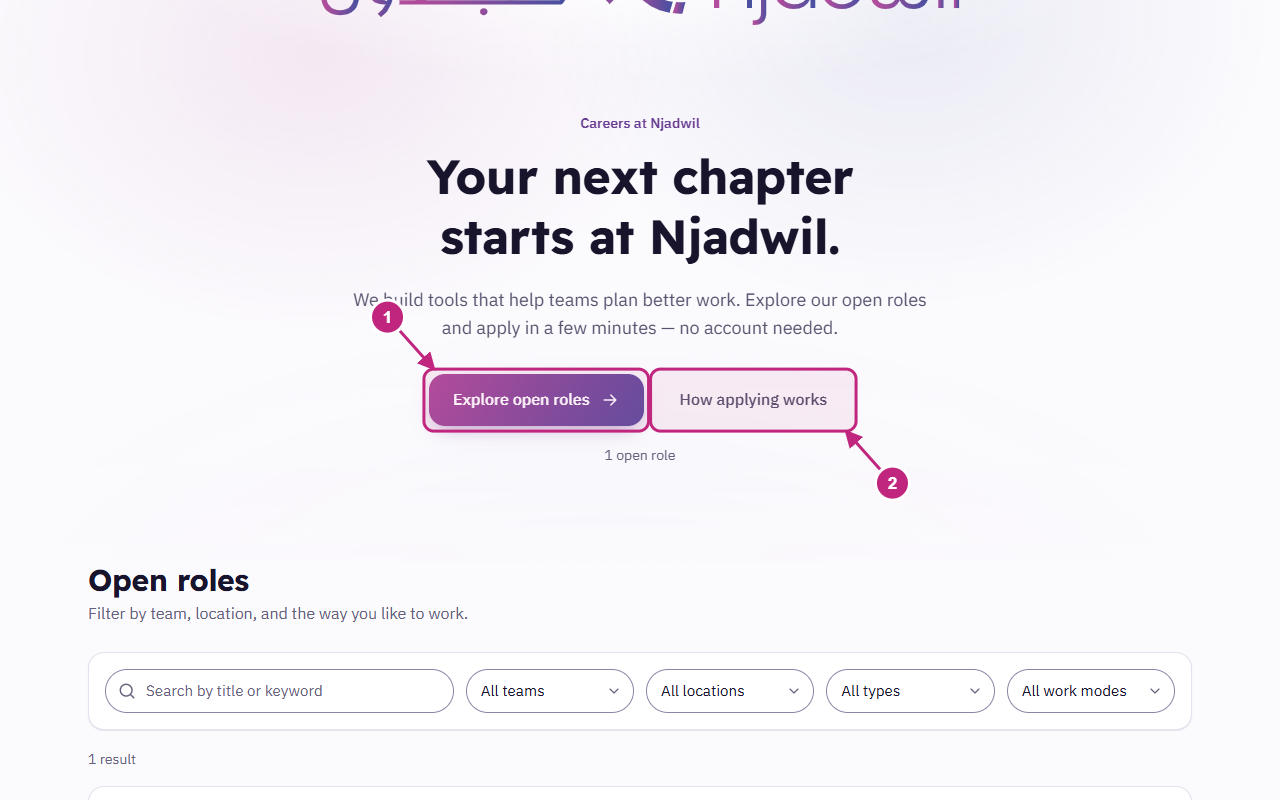
- Press Explore open roles to go straight to the list of roles.
- Press How applying works if you want a summary of the four steps before you start.
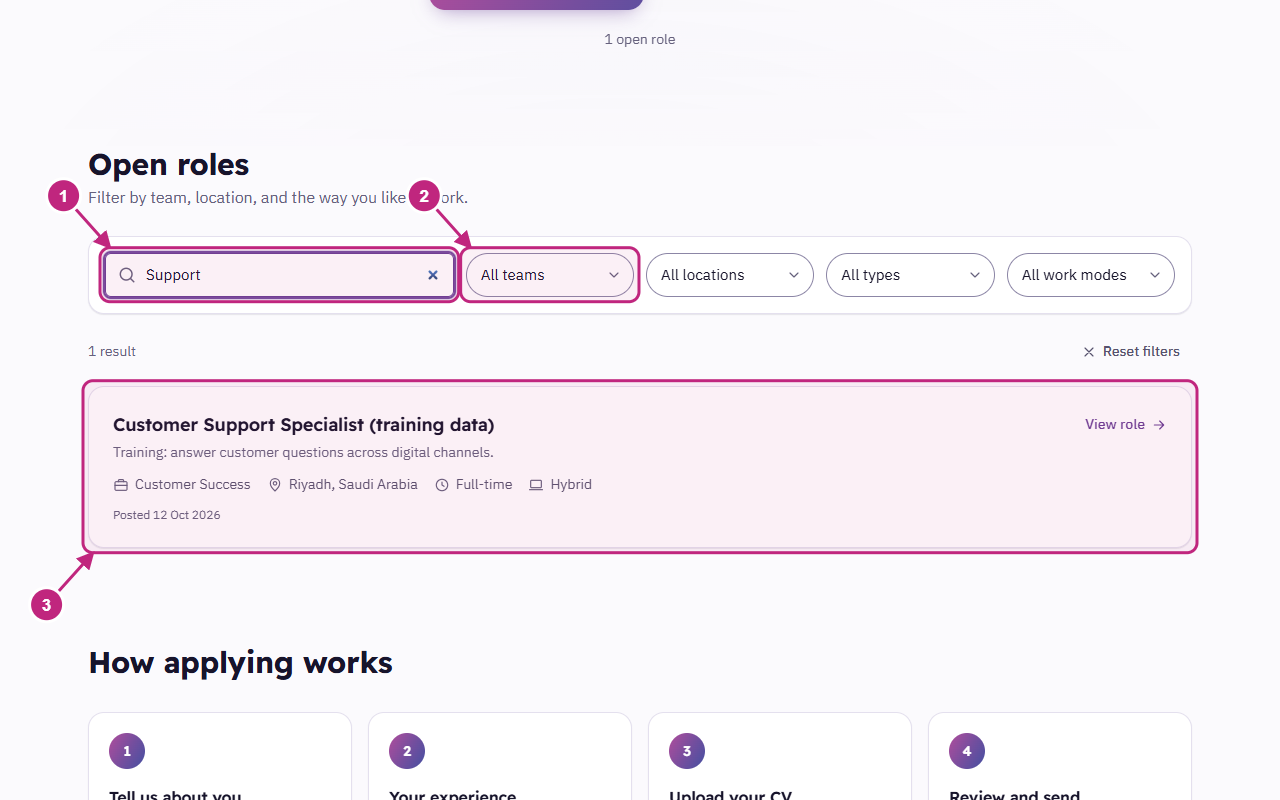
- Type a word from the job title in the search box (for example "support").
- Narrow the results with the lists: Team, Location, Employment type, Work mode.
- Press a role card to open its details.
Expected result: only matching roles appear, with their count. If nothing appears, press Reset filters.
2. Read the role details
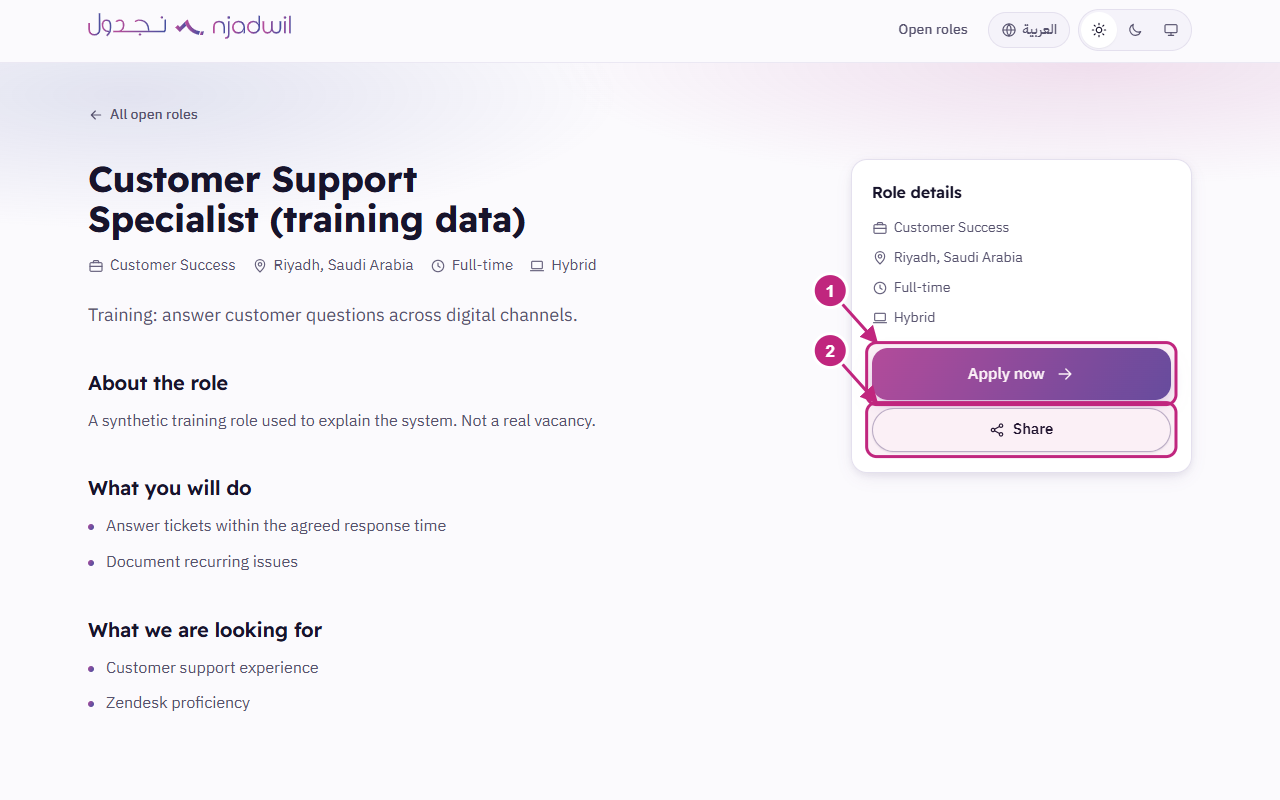
- Press Apply now to start your application.
- The Share button copies the role link so you can send it to someone else.
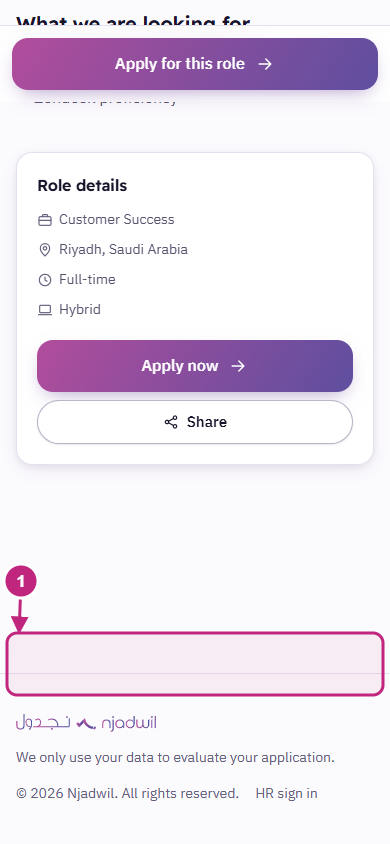
On a phone, the Apply for this role button always stays visible at the bottom of the screen:
3. Step 1 of 4: Basic details
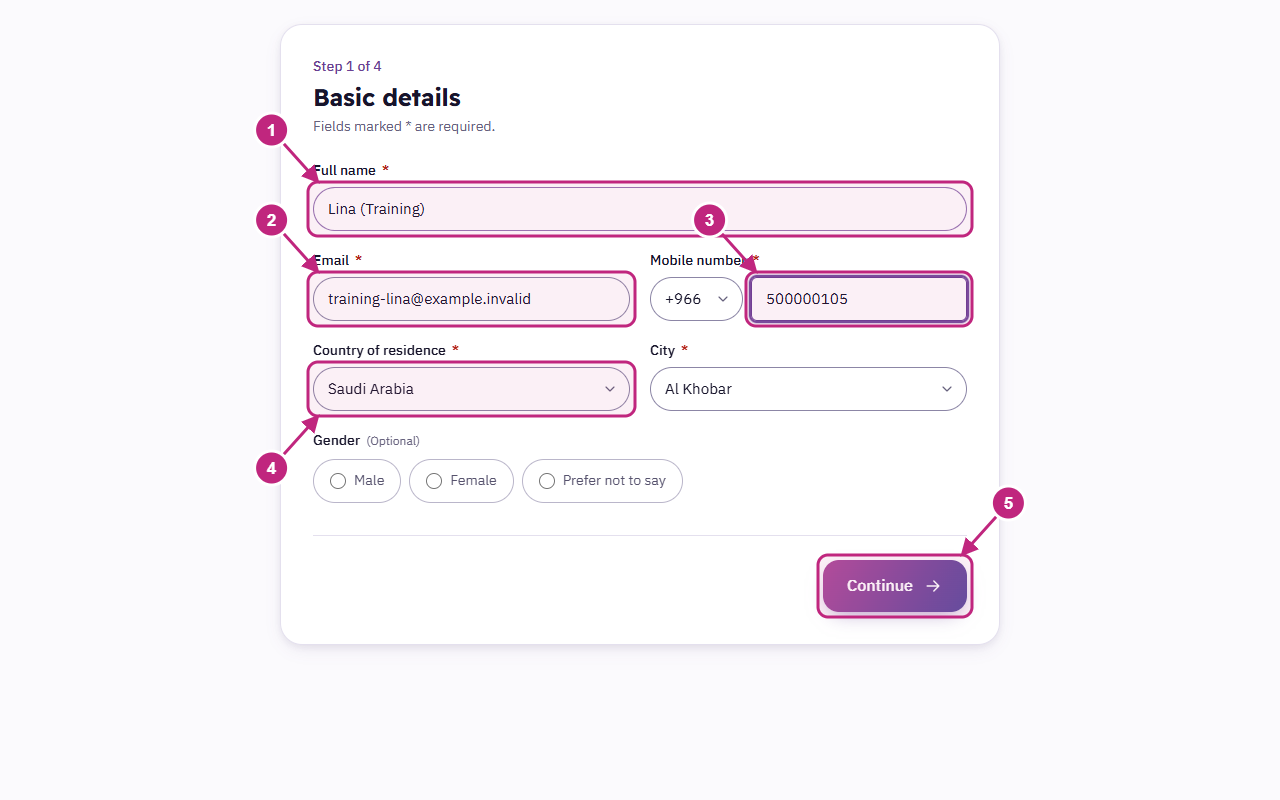
- Full name, as you would like us to address you.
- Email: we will contact you at this address, so check that it is correct.
- Mobile number: digits only. You can type Arabic digits (٠١٢٣) and the system converts them automatically.
- Country of residence and City: the cities appear after you choose the country.
- Press Continue.
Gender is optional. You can choose Prefer not to say.
If red messages appear
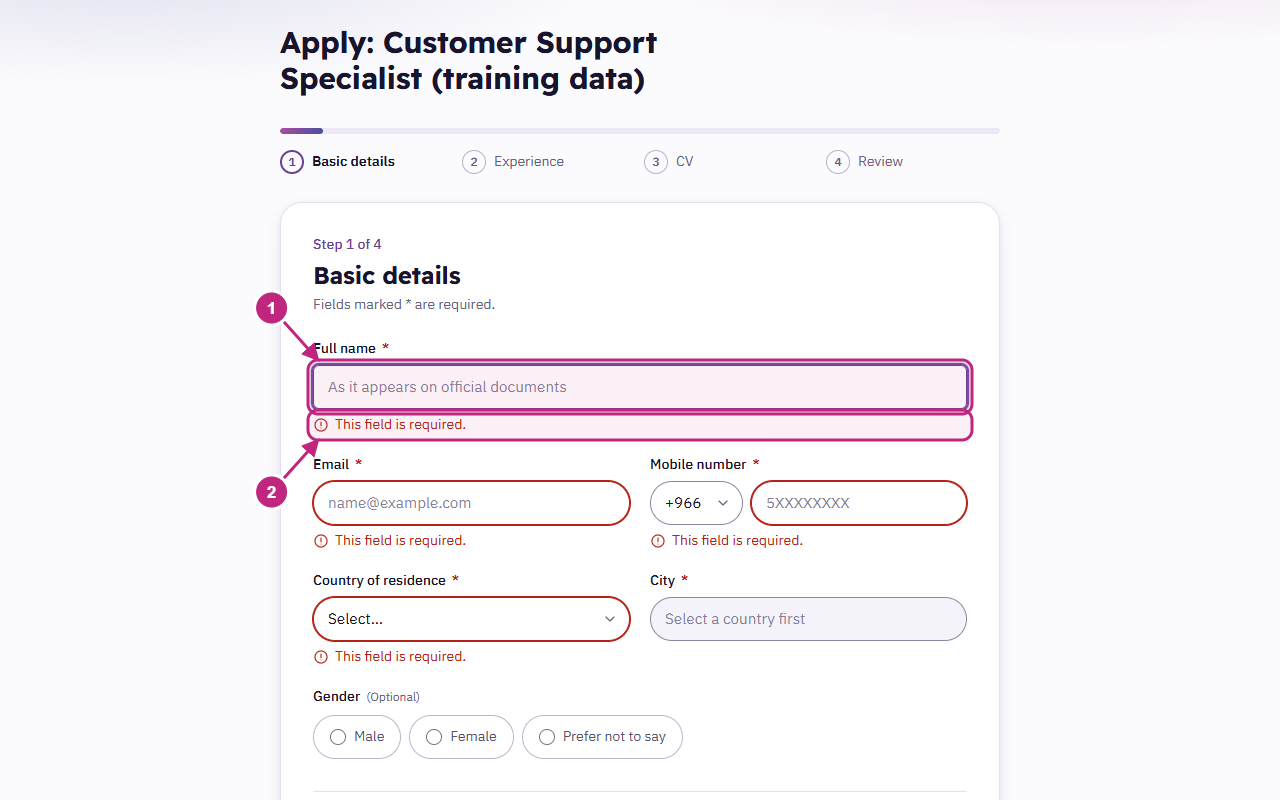
- The cursor moves automatically to the first field that needs a fix.
- The red message under the field explains exactly what is needed. Fix the field, then press Continue again.
4. Step 2 of 4: Experience and qualifications
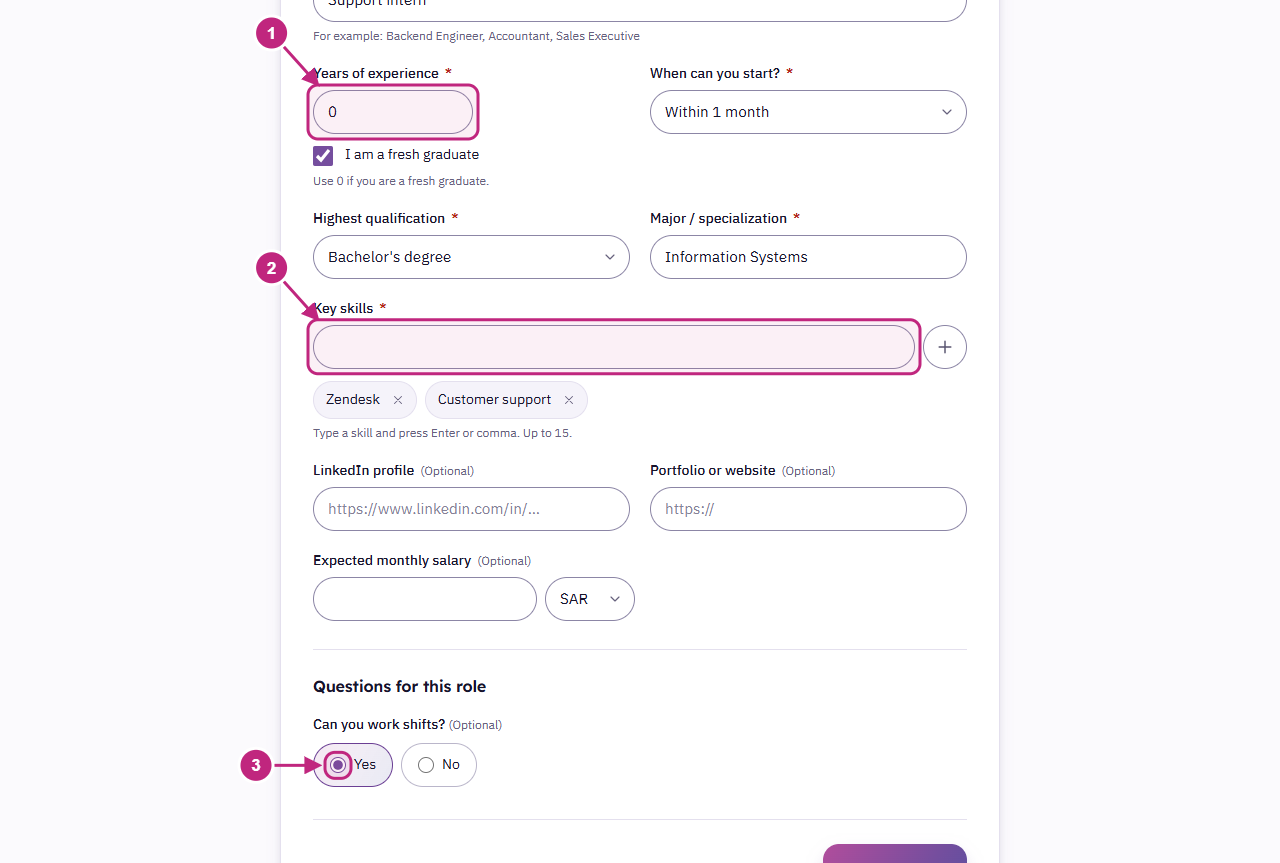
- Years of experience: if you are a fresh graduate, tick I am a fresh graduate and the value becomes 0.
- Key skills: type a skill, then press Enter or a comma. Each skill appears as a tag you can remove with ×. The limit is 15 skills.
- Questions for this role: some roles add questions. Required ones are marked.
LinkedIn profile, portfolio link and expected salary are optional.
5. Step 3 of 4: CV
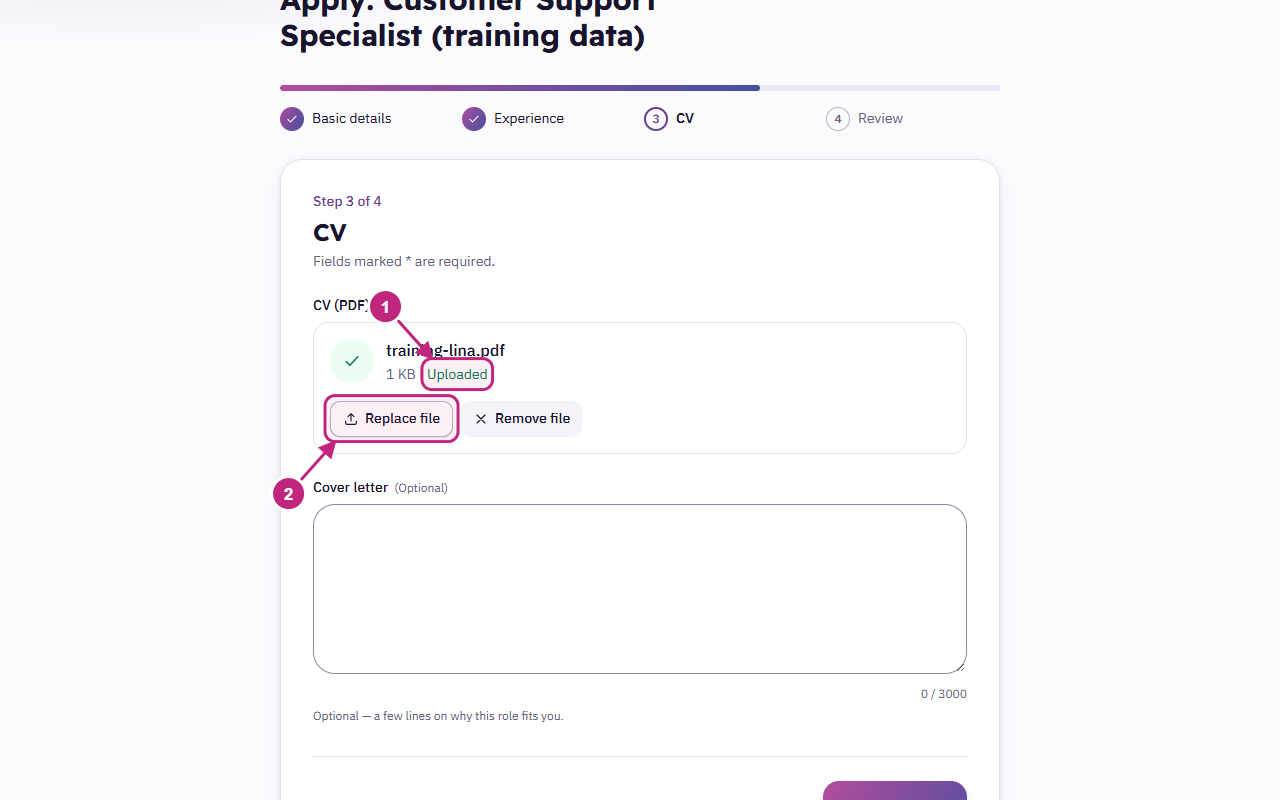
- After you choose the file or drag it into the box, a progress bar appears, then Uploaded.
- You can Replace file or Remove file before you submit.
The cover letter is optional (up to 3000 characters).
If the file is rejected
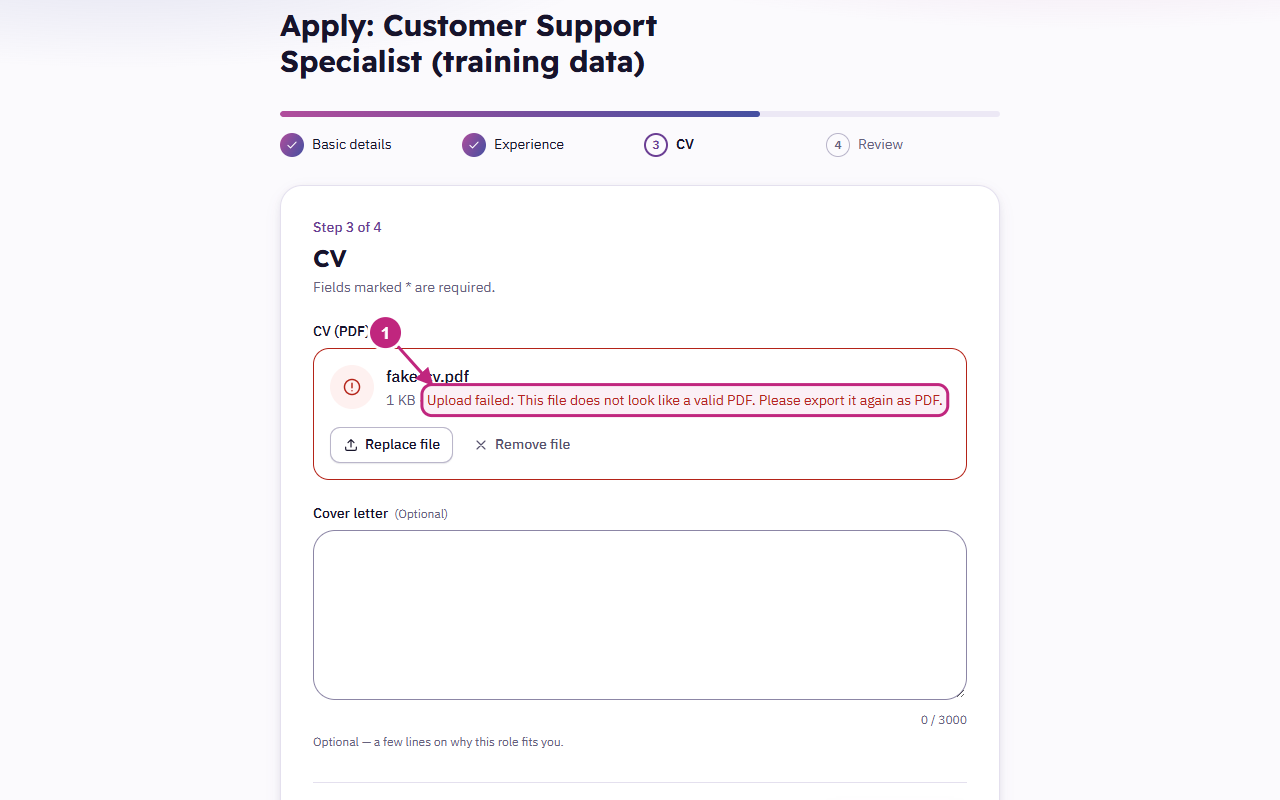
- This file does not look like a valid PDF. Please export it again as PDF. The file is usually a Word file or an image that was renamed. Open your CV and save it again as PDF (File, Save As, PDF).
6. Step 4 of 4: Review and submit
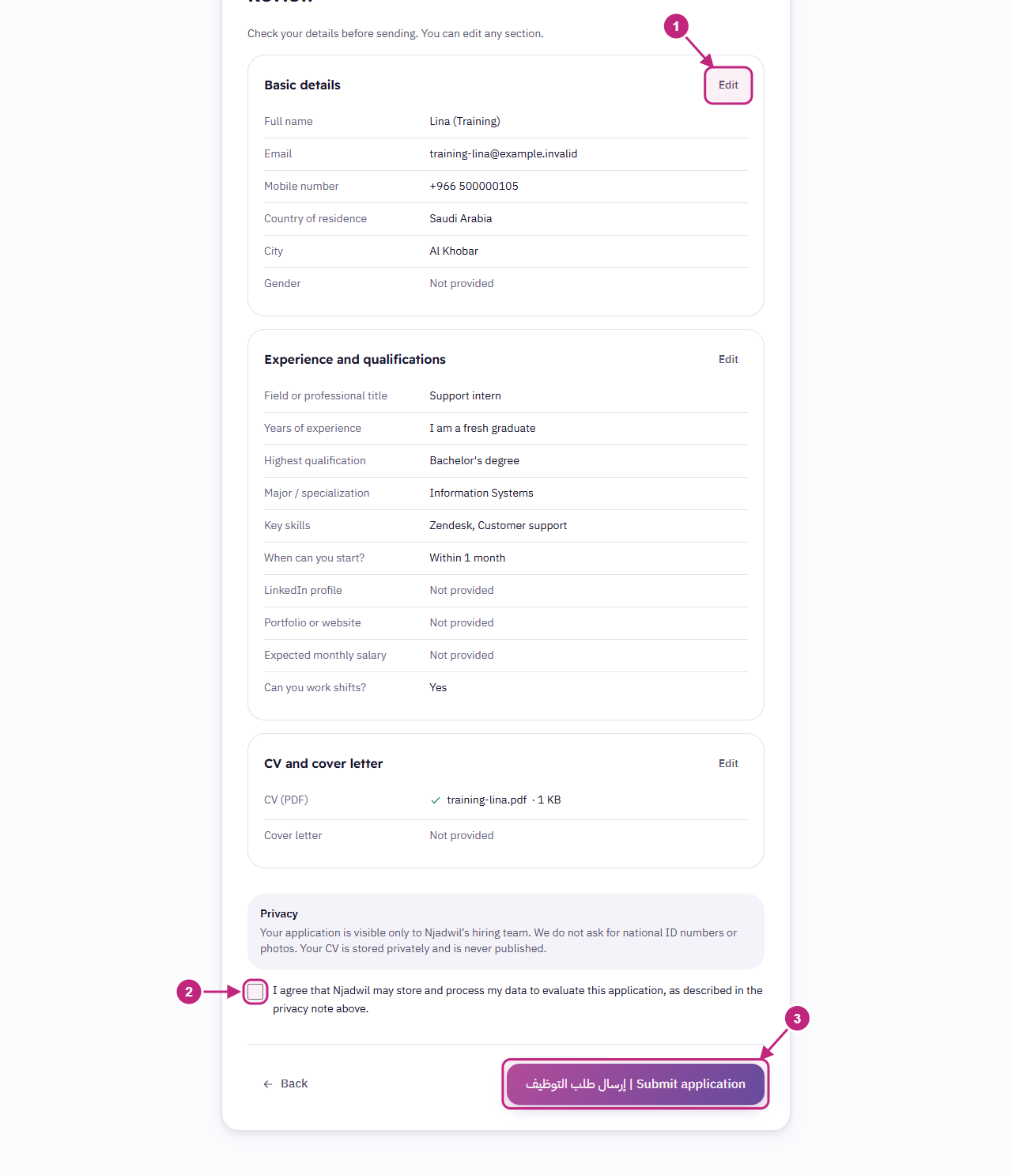
- Check your details. The Edit button takes you back to that step without losing anything.
- Read the privacy note, then tick the consent box (it is not ticked in advance).
- Press إرسال طلب التوظيف | Submit application.
7. Application sent
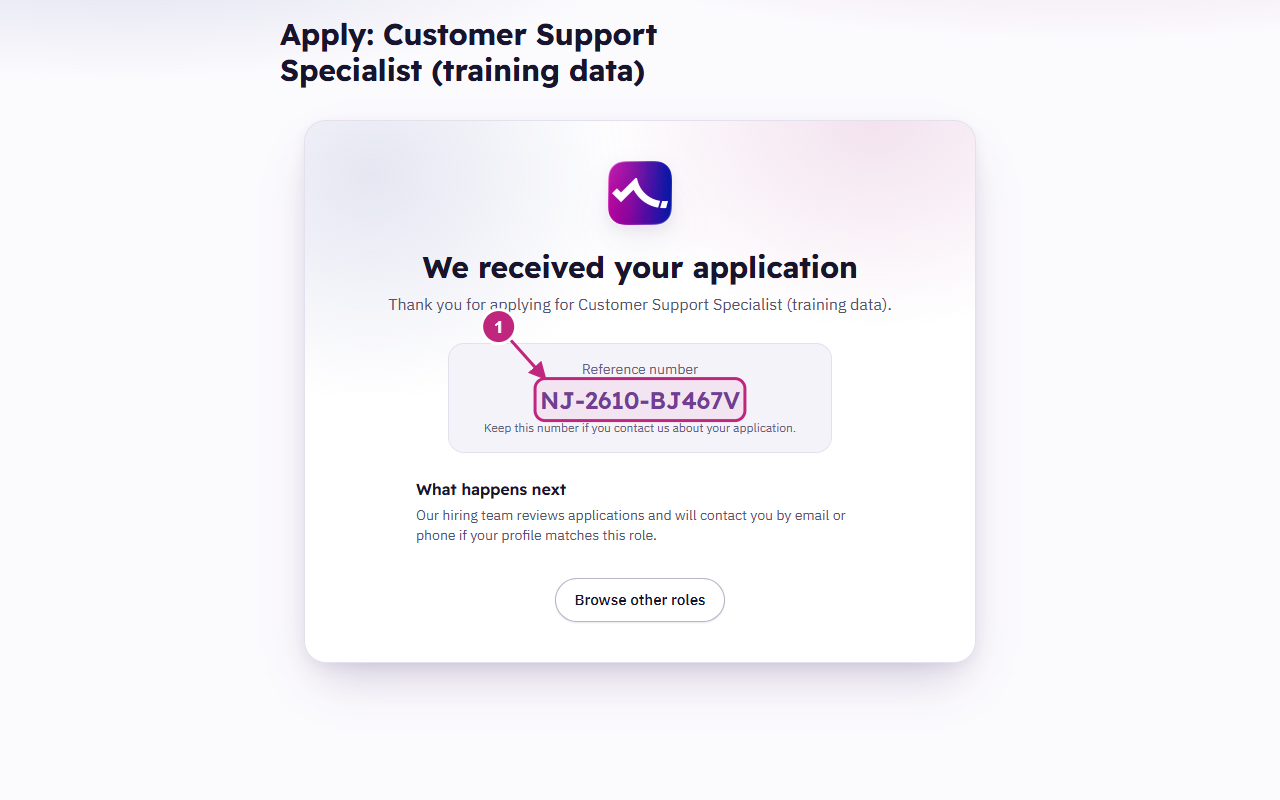
- Keep the Reference number (for example
NJ-2610-XXXXXX). It appears only after the server confirms that your application is saved.
What happens next? The hiring team reviews applications and contacts you by email or phone if your profile is a good fit. The system does not send automatic messages.
Common errors and fixes
| What you see | Cause | What to do |
|---|---|---|
| "This field is required." | A required field is empty | Fill in the field marked in red |
| "Enter a valid email address, like [email protected]." | The email format is wrong | Type it as [email protected] |
| "This file does not look like a valid PDF. Please export it again as PDF." | The file is not a real PDF | Save your CV as PDF and upload it again |
| "This file is larger than 10 MB." | The file is too large | Shrink the images in your CV or export it at a lower quality |
| "Please confirm the privacy consent to continue." | The consent box is not ticked | Tick the consent box |
| "You have already applied for this role with this email. Reference: …" | A repeat application with the same email for the same role | Your first application is saved and its reference number is shown. You do not need to apply again (see the image below) |
| "Sorry, this role stopped accepting applications." | The role is closed | Browse the other open roles |
| "We could not reach the server. Your answers are safe on this page — check your connection and try again." | The internet connection dropped | Your answers stay on the page. Check your connection, then press submit again. Your application will not be sent twice |
| "Your CV upload expired. Please upload it again." | A long time passed after the upload | Upload the file again, then submit |
| "Too many attempts. Please wait a few minutes and try again." | Many attempts in a row from the same device | Wait a few minutes, then try again |
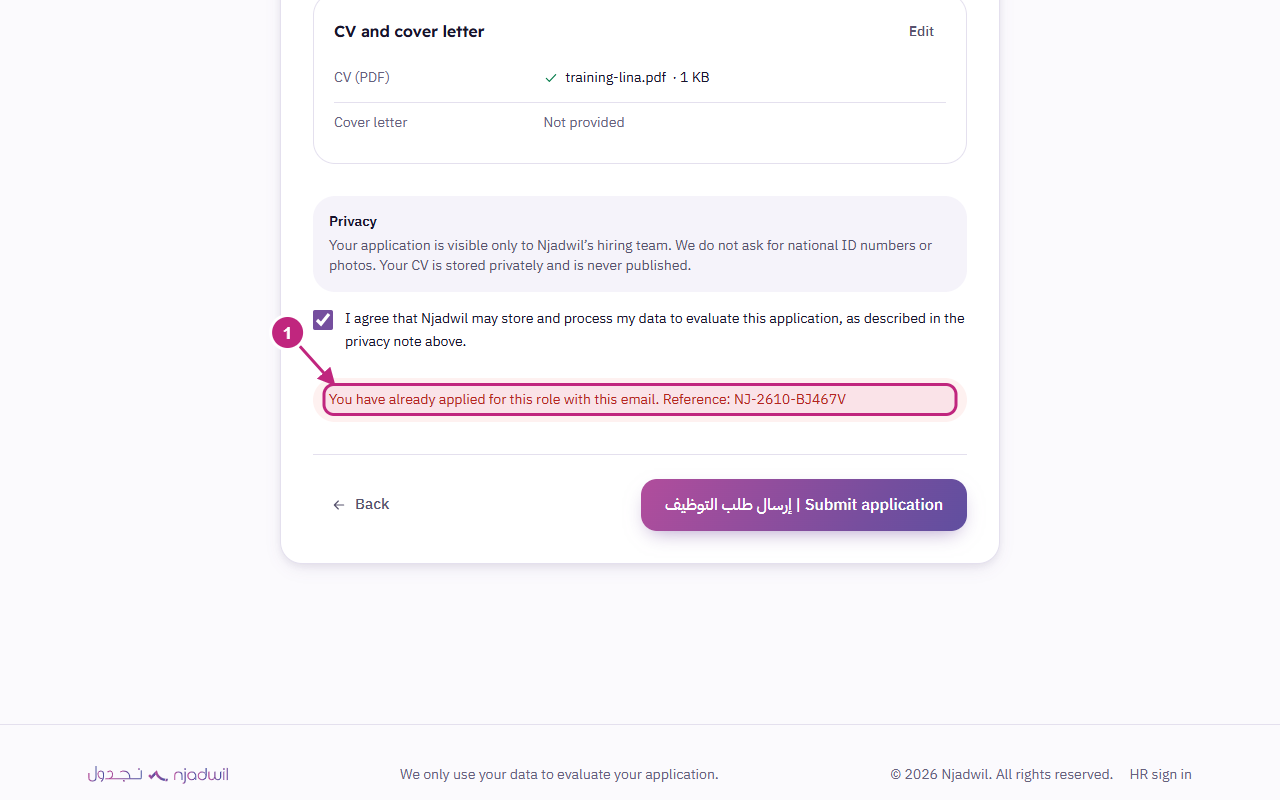
- This message means your earlier application is saved. The reference number shown is its number.
Tips
- You can switch the language (العربية/English) while you fill in the form without losing your answers or the uploaded file.
- We do not ask for a national ID number or a photo, and your CV is never published.
- Your answers are not saved in the browser. If you close the page before you submit, you will need to start again.